

Organize Your Messiest Folder with Claude Cowork
By: Sarah Pita
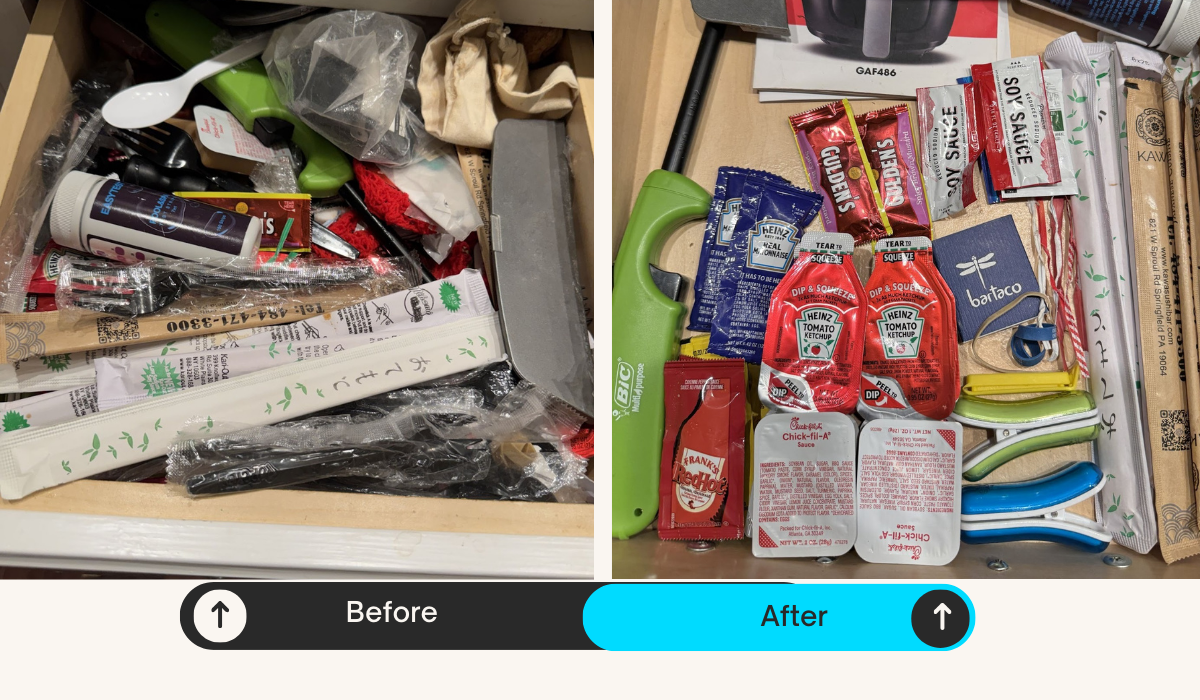
Sarah’s Junk Drawer Before-and-After Photo
This one is for Claude users.
The research preview of Claude Cowork recently became available to Claude Pro Plan (that’s the $20 tier) users. My very first project made me laugh in astonishment.
Cowork is a new offering from Claude that has agentic capability and works within your desktop. It completes complex tasks autonomously based on your prompts written in plain language. This is in contrast to options like Claude Code and ChatGPT Operator, which can create agents that will operate autonomously on your behalf on the internet.
For people using a personal account at work (which is far from ideal, but not uncommon), an autonomous AI agent operating from that account could introduce privacy and security risks for both your employer and for you personally. In the absence of enterprise-level tools or a stated policy, err on the side of caution.
This is one of the things that is so appealing about Cowork. It works in your files, on your computer, and you get to choose which ones it has access to.
For my first experiment, I decided to organize a folder in my personal hard drive with over ten years of poorly organized content-- inconsistent naming, duplicate files, and whimsical organization. Finding something in that folder always took me forever.
It was a perfect case for Cowork. Here are the steps I took:
This is important: First, copy the whole folder, and label it clearly as the copy. Remove anything you don’t want to be seen by AI.
If you aren’t using the Claude desktop app, download it. In the interface, you can toggle between Chat/Cowork/Code. It appears at the top of the frame on my computer. Choose Cowork.
In the chat interface, you will see “Choose a folder to work in.” Select the folder you just created.
Write some instructions. For example: please review this folder, tell me what it contains, and create an inventory of the contents.
Press enter and watch it get to work. It may ask you some questions. You can go get another cup of coffee while you wait.
In my case, after getting the summary and inventory, I asked it to organize the contents by date and category, standardize the naming, and get rid of duplicate files.
A popup appears asking if Cowork has permission to change or delete your files. This is permission specific to the folder you are in. Options are Cancel/Always Allow/Allow (I select “allow” because I’m not that trusting, I guess)
Go get a snack. When you come back your documents will have clear, consistent names and your folder will be tidy and easy to work with.
Ask it to make something. Say your messy folder had all your resumes and cover letters over the last 20 years. You could ask it to make a new resume with a new focus.
If you’ve ever accumulated, or inherited, years and years of files, ponder what a game changer this could be. Think of that folder with over a hundred old grant applications—and all the supporting materials—in it. You may actually be able to find all the grants you ever did about mental health pretty quickly now. Or access—and analyze—the language from years of annual appeals in one place.
I’m excited.
But this is still quite new. So try organizing that folder on your hard drive that is the equivalent of the junk drawer in the kitchen. It’ll sort the condiment packets, get rid of things that are no longer useful, and create a special section for takeout menus. Everybody wins.
About the Author:
Sarah Pita is a fundraising professional with 25+ years of experience and a dynamic speaker who makes AI approachable and immediately useful for nonprofit teams. She leads practical, engaging trainings and workshops on using AI for fundraising and has presented at groups such as Women In Development NYC and at the AFP GPC Leading Philanthropy conference, among others. Sarah is currently Director of Development at the Center for Independence of the Disabled, New York.
Interested in an AI workshop or training? Contact Sarah here.