

Switching from ChatGPT to Claude: A Getting Started Guide
By: Sarah Pita

This car was never hard to find in a parking lot
New to Claude?
It’s not that hard to just jump in and start typing if you’re used to working with another AI tool, like ChatGPT or Gemini. By design, it’s kind of like getting a new car—the basic controls will feel familiar but there may be some new features you’ll really like. Myself, I remember so vividly what it was like to get a car with air conditioning after several cross-country road trips in a bright green Geo Prizm with no AC…
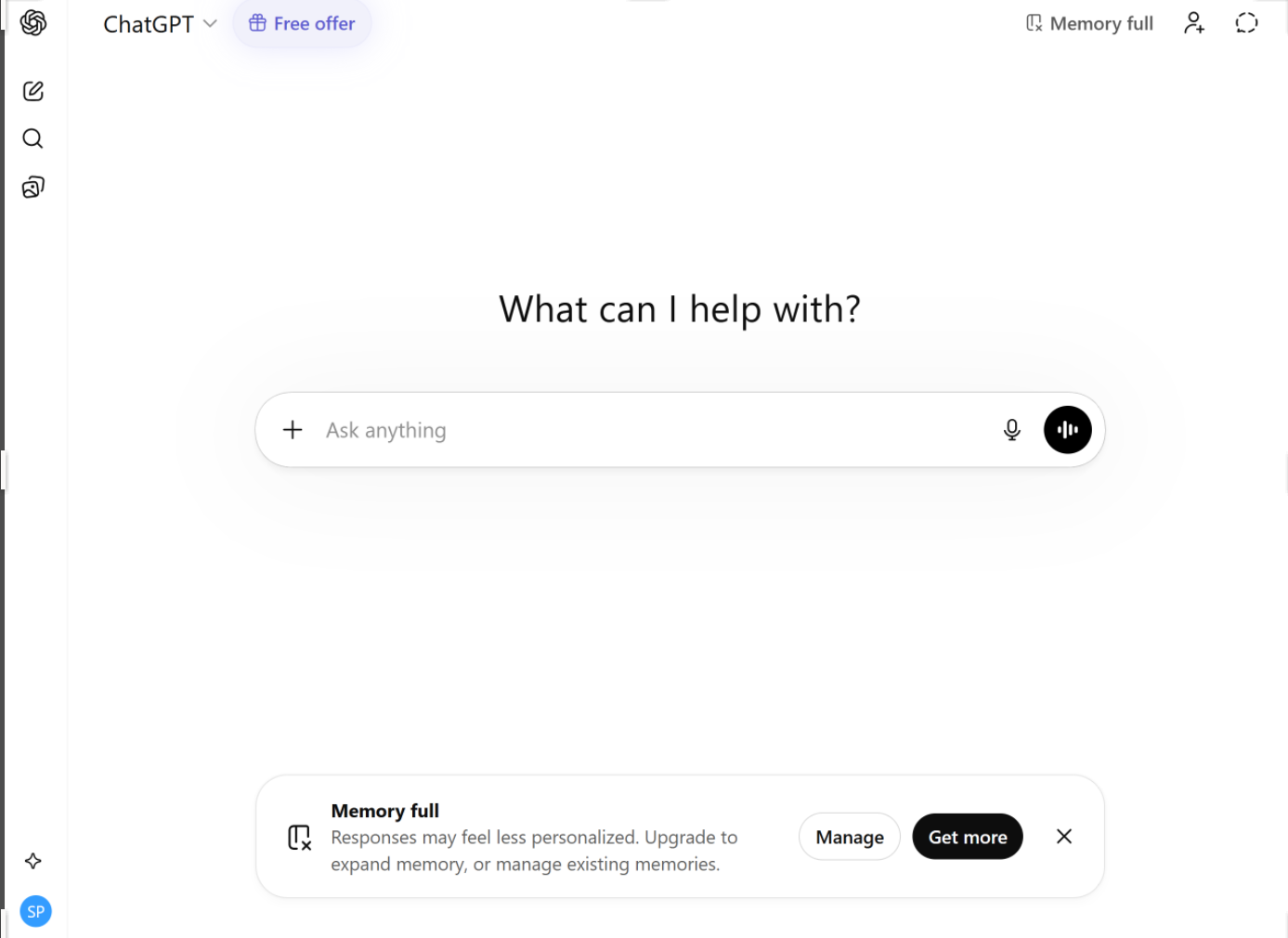
Chat GPT: no longer using my name since I canceled my subscription
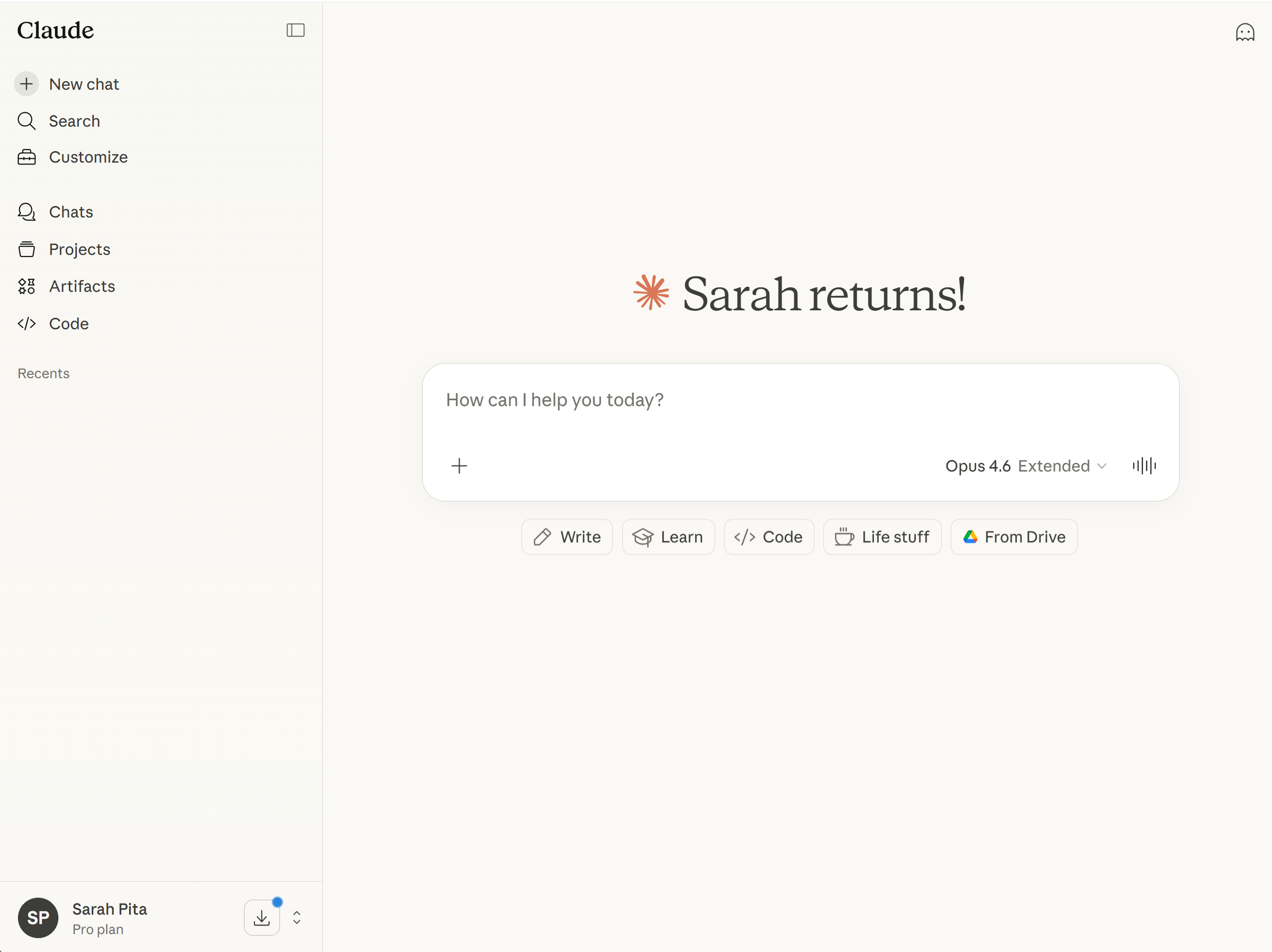
Claude: feeling substantially warmer
In this article, I won’t go into which is better, or debate ethics. That would be an entirely different article.
But, if you are just getting set up in Claude for the first time, it’s worth taking a moment to compare and learn. Some things are quite similar. Others are unique to Claude. And there are a few things that Claude doesn’t have (yet).
SETTINGS
The settings are in the same place (lower left hand corner), but they work a little differently.
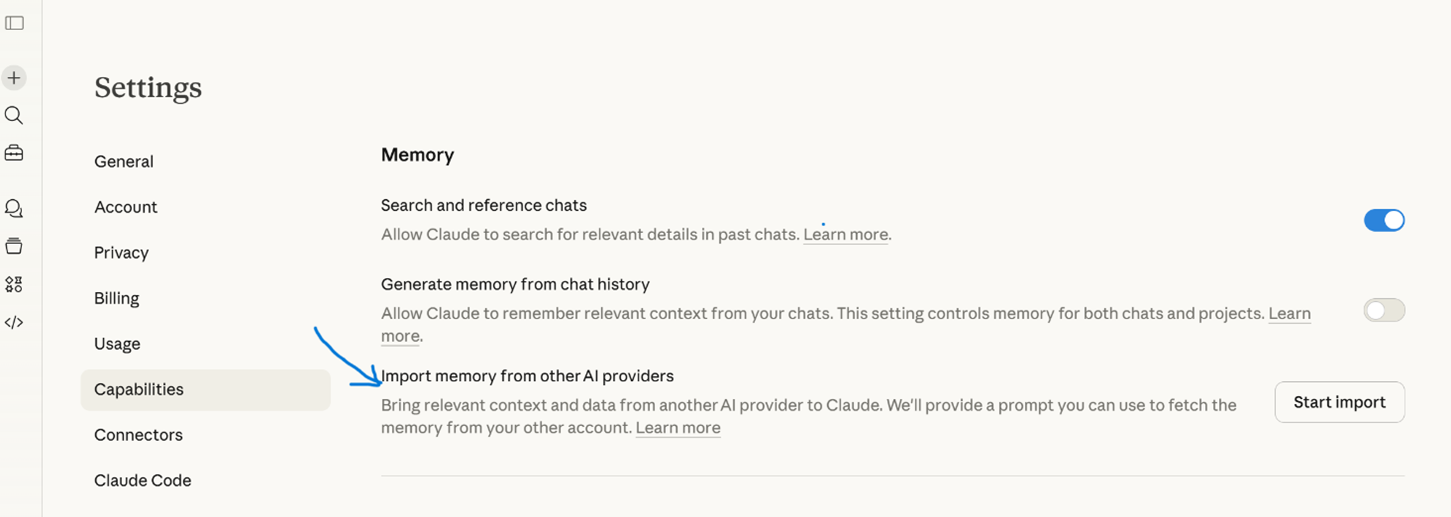
Memory. Claude doesn’t have an editable surface memory like ChatGPT does. Like ChatGPT, it has a setting that will allow it to access a complete memory of you by connecting to all your chats, every single time.
See this article that describes Claude’s memory.
As with other AI tools, you have to choose whether you want complete memory. I have it turned off, because I use my Claude account for a lot of different things and I don’t want the tool to reference all of those things every time I work on something.
If, however, you liked having ChatGPT remember you globally, you have that option with Claude as well. Anthropic (Claude’s parent company) helpfully provides a prompting structure to migrate your operating instructions over from another AI, so you don’t have to spend quite so long “training” it. You can find the prompt in your settings, under “capabilities” and “memory”.
Personal Preferences. This is under “General”. I don’t like telling people how to prompt. But I have configured my settings to make Claude a bit less obliging (and less inclined to rewrite my work) and I recommend it to anyone.
Voice Controls: If you are into conversing with your generative AI tool, Claude has five different voices to choose from (one of them is “Buttery”!). You can find these under “General”.
Usage: I occasionally have my usage throttled in Claude. Using the Opus model or working in Cowork both use a lot of tokens. While it’s not the worst thing in the world to have to step away from the computer for a little while, it usually happens during moments of flow or on the brink of a deadline. A couple of months ago Anthropic made it possible to pay for extra usage, instead of upgrading to the $100 or $200 monthly tier. In the “Usage” setting, you can buy some more time and set a monthly limit.
PROMPTING
Picking model types. Claude has three model series: Opus, Sonnet, and Haiku. Currently we’re on Opus 4.6, Sonnet 4.6, and Haiku 4.5. Opus is the most sophisticated and complex. I have found that Opus is a particularly excellent writer and nuanced reasoner; I really like working with it. But, it does burn through your usage more quickly. Sonnet 4.6 is very capable. I sometimes wonder if I’m just imagining that Opus is smarter—kind of like how premium gas must be better for your car’s engine. Haiku is the fast and light version.
Choosing a writing style. As in ChatGPT, you can choose between several different writing styles in Claude, or design a custom voice. In Claude, click the little + (see below) and you’ll find a menu that includes options like writing voice.
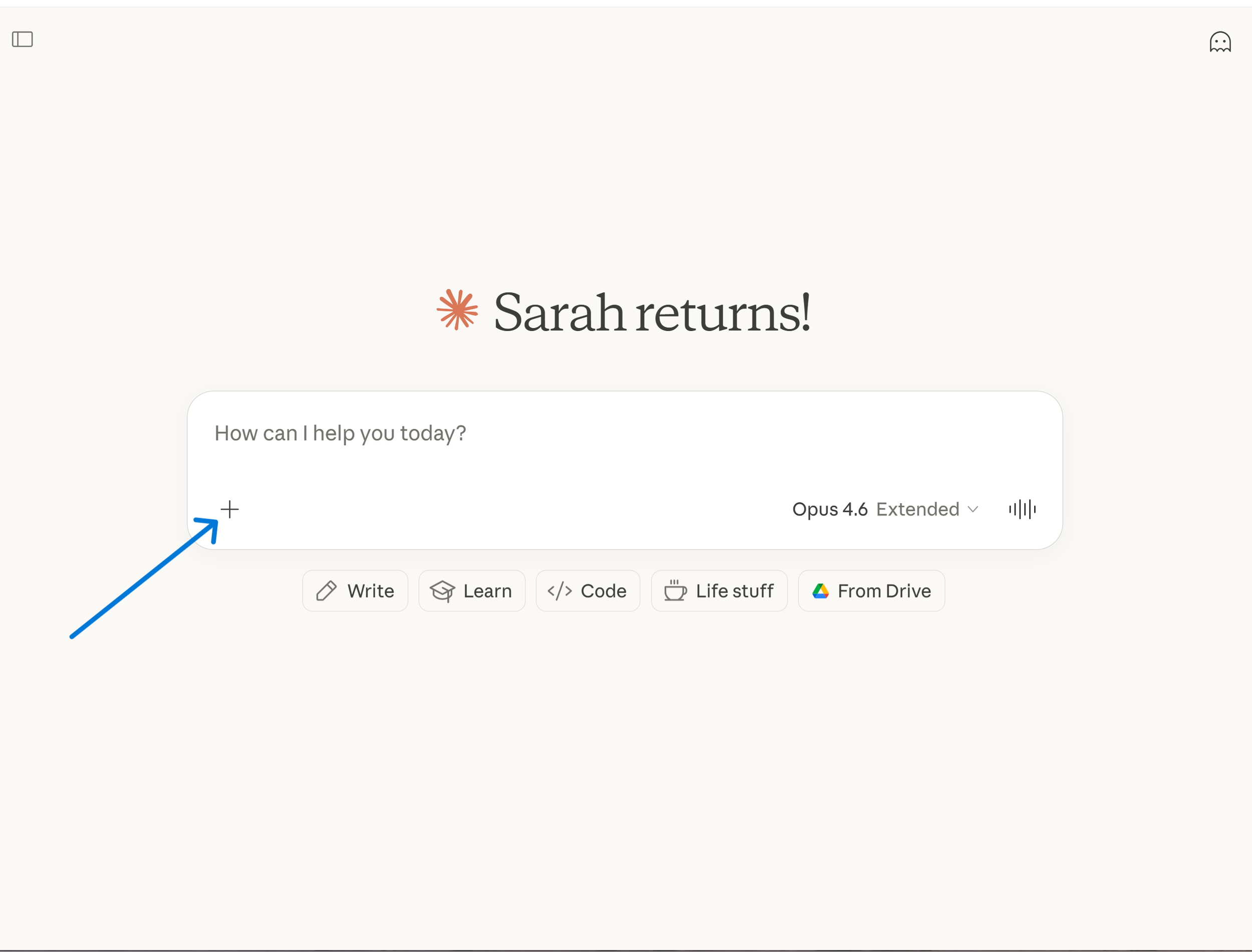
Research? You can access Claude’s version of Deep Research with a Pro or higher level subscription. Find this mode in the plus sign menu (above).
If you’re worried that you’re going to hit your session token limits, one workaround is to do your research in Perplexity, which is known for the transparency of its citations, or in Gemini. You can still have Claude write the prompt, so you don’t have to interrupt your workflow to explain the full project to another AI. Copy and paste… and then copy and paste. And always check the sources.
Web Search. Like ChatGPT, Claude can search the internet. You can access that in the same + menu as Research—or you can even prompt Claude to access the internet (“you can look that up online”) and that works too.
No image generation. This is not a space Claude has entered… yet. So if you are working on a project that needs images, use Claude to draft the prompts and then generate the images in Gemini or ChatGPT. As with research, this approach limits the need to leave whatever you are working on and go to another AI and start all over. Let Claude bring the new AI up to speed. Although Claude can’t create images, it has the capability to view and analyze images, including images you generate with another tool, and will weigh in on how good they are.
File Handling. Similar to ChatGPT, you can upload your files either through the + menu or by dragging them into the chat window.
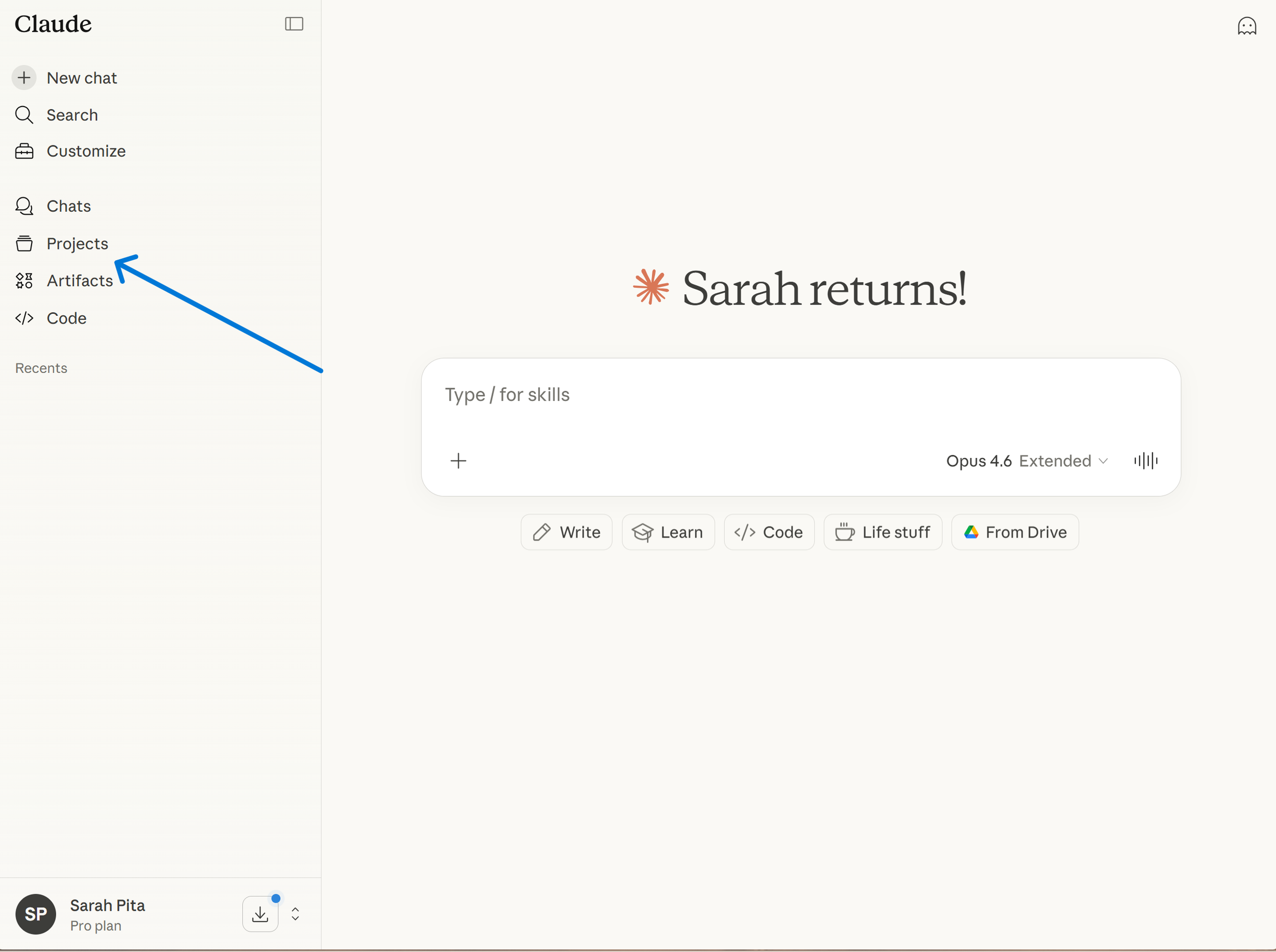
IN THE SIDEBAR
No GPTs. Claude does not have GPTs—automations you can set up for repetitive tasks in ChatGPT. What it does have is…
Projects. Projects are located in the same area of the menu as Artifacts. Projects are a simple and great feature specific to Claude. To set one up, name what it is that it does and upload any information it will always need to do that work. For example, if you were creating a project for your grants, you might upload things like the annual report, program one-pagers, and perhaps some old grant applications. Now, even with global memory turned off, every time you start a chat within a project, it will have that knowledge at its disposal. It will also maintain a list of chats within the project, which can make it easier to find old chats. Tip: be sure to update the knowledge documents. That way you won’t keep hearing about your “upcoming gala” long after it has come and gone.
Artifacts. Artifacts are mini-apps you can create using plain language. The “Artifacts” tab is located in the same general area of your screen as GPTs in ChatGPT (see above). Check out the “Artifacts” tab (left side bar) sometime, as this space has been set up for learning. It is a great place to experiment with AI’s ability to make things if you are feeling creative and ready to branch out beyond writing projects.
CLAUDE CODE AND CLAUDE COWORK
With the desktop app, you can also access two of Claude’s buzziest features: Claude Code and Claude Cowork.
Claude Cowork. Cowork is (at least for now) unique, and you can access it with a pro or higher subscription. You instruct it in plain language and set limits on what it can access, and it can do all kinds of useful things within your files on your computer.
See my article here for a beginner Claude Cowork project.
Claude Code. Claude Code is a powerful developer’s tool that you can work with from your Claude subscription. Vibe coding (coding in plain language) enthusiasts will tell you that you can easily jump in and start making things with no prior knowledge. It’s actually a bit more involved than that, but many first-time users have been amazed at what they are able to accomplish with just a little bit of instruction. Claude has free tutorials available as a starting point.
INCOGNITO MODE

Like ChatGPT, Claude has an incognito mode. Select the tiny ghost icon in the upper right hand corner of your screen to start a temporary chat that will not be stored in your memory or chat history. As soon as you leave it, it’s gone for good.
CONNECTIONS
Connections. If you've used plugins in ChatGPT, Claude's equivalent is its integrations — connections to tools like Google Drive, Gmail, Google Calendar, and Slack. You can find and manage these through the "Search and tools" menu near the chat input.
So if you’re new to Claude, be sure to try some of these things out while you are getting started. You can always ask Claude for help if you get stuck! (Literally: “Claude, how do I get started with Cowork?” is a great place to start.)
And that is something no car I have owned has been able to do… so far. “Car, how do I open the moon roof?” But I’m sure that’s coming.
About the Author:
Sarah Pita is a fundraising professional with 25+ years of experience and a dynamic speaker who makes AI approachable and immediately useful for nonprofit teams. She leads practical, engaging trainings and workshops on using AI for fundraising and has presented at groups such as Women In Development NYC and at the AFP GPC Leading Philanthropy conference, among others. Sarah is currently Director of Development at the Center for Independence of the Disabled, New York.
Interested in an AI workshop or training? Contact Sarah here.